
Guides
Flow Campaigns
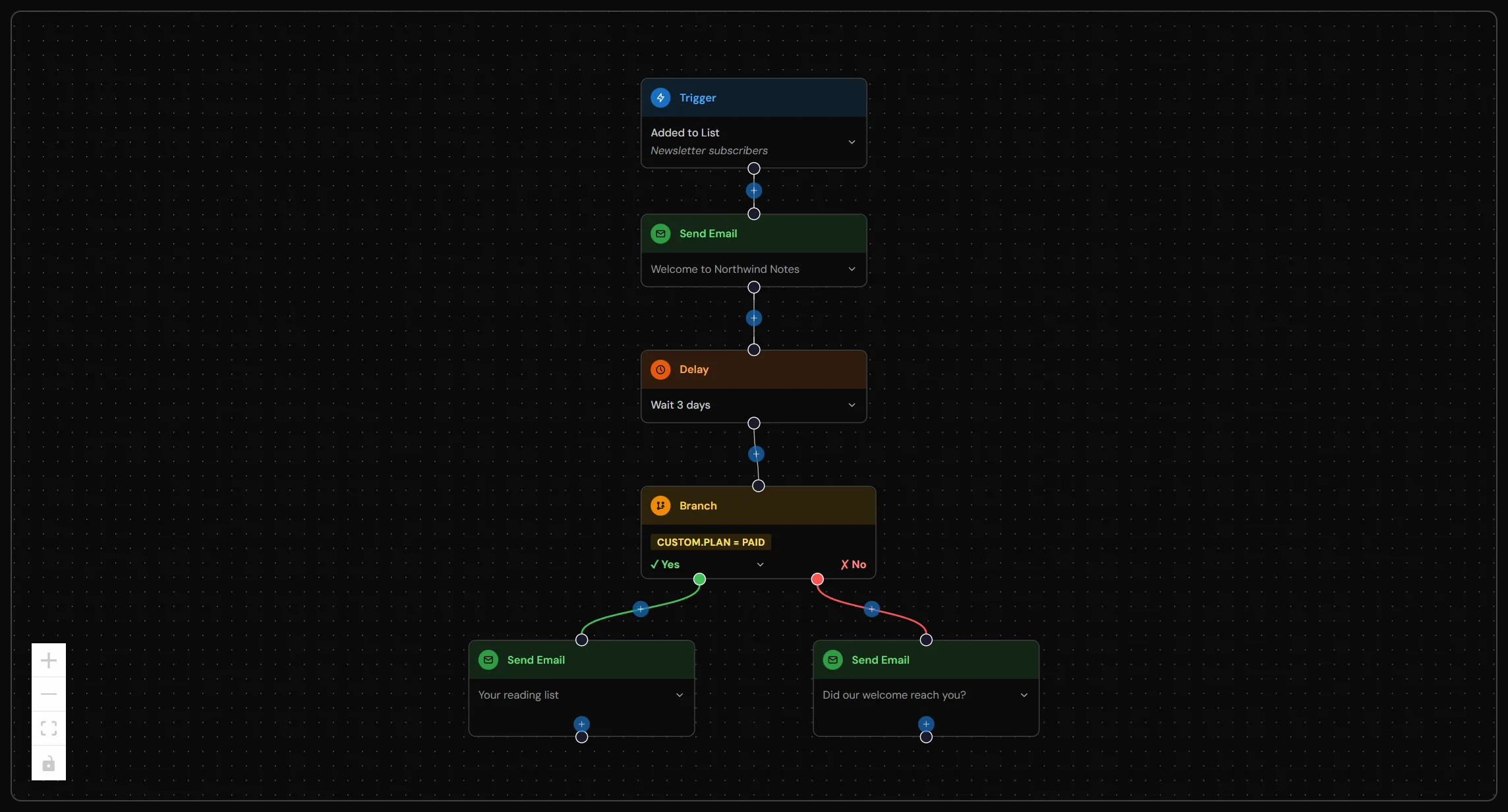
Flows are visual, event-triggered automations. A contact enters a flow when your app fires an event with a matching trigger name, then moves through the nodes, emails, delays, conditions, until the flow ends.
Create a Flow
Where to find it
Campaigns › New Campaign › Flow
- Go to Campaigns, click New Campaign, then Create Flow.
- Name it and pick the address it comes from. Choose Marketing (newsletters, onboarding, offers) or Transactional (email about something the contact did, like a receipt; only for flows started by an event).
- On the canvas, set the Trigger: an event your app sends, a contact being added or updated, a contact joining a list, or a signup form being submitted.
- Use Add Node to add emails, waits, branches and other steps, and connect them in order. A branch has a Yes and a No side.
- Click Test for a contact to see the path a real contact would take (nothing is sent), then Activate Flow.
Flows are included on the Free plan; the emails they send count toward your 100 free emails.
Flows vs Sequences vs Broadcasts
Use a flow when:
- You need to react to something that happened (trial expiring, user went inactive)
- You want to send different emails based on contact data
- You want to chain actions with delays
Use a sequence when:
- Everyone gets the same emails in the same order (course, newsletter series)
- No branching needed
Use a broadcast when:
- One-time send to a filtered audience
Node Types
Trigger
The entry point of every flow. Configure the event name that starts this flow (e.g. user.registered, trial.expiring).
A contact can only be enrolled in the same flow once at a time. Firing the trigger event again while a contact is mid-flow has no effect.
Send Email
Sends an email to the contact at this point in the flow. Choose any email template from your account. Variables and spintax are resolved at send time using the contact's current custom field values.
Delay
Pauses the flow for a set amount of time (minutes, hours, or days) before moving to the next node. Use this to space out emails naturally:
Audience Filter
Checks whether the contact meets a condition. Contacts that don't match the condition exit the flow entirely.
Use audience filters to guard emails that only make sense for certain contacts:
- "Send this email only if the user hasn't upgraded": filter:
plan = free - "Send this nudge only if no video uploaded": filter:
hasUploadedVideo = false
Branch
Splits the flow into two paths based on a condition:
- Yes path: contacts that meet the condition
- No path: contacts that don't
Both paths can continue independently with their own nodes. Use branches to personalise the experience without requiring separate flows.
Conditions compare stored values as exact strings. A field holding
"1"does not match a condition looking for"true", and neither does"True". If your application sends booleans, send them as the strings"true"and"false": a raw JSONtrueis stored as"1", and a rawfalsebecomes an empty value that reads as though the field was never set at all.This is the single most common reason a branch sends the wrong email: the comparison fails, the contact takes the No path, and nothing anywhere reports a problem. A field name that does not exactly match what your application writes fails the same way:
hasShareLinkandhasCreatedShareLinkare different fields, and a branch reading the one you don't write takes the No path for everyone.Check both with Check it before you activate below.
Wait for Option
Pauses the flow and waits for the contact to click one of a set of option buttons. Each option is a signed link embedded in the preceding email via the {{custom.optionLinksHtml}} placeholder. When a contact clicks, Mailtani records their choice as a custom field value and resumes the flow along the matching outgoing edge.
Each option creates its own outgoing path, so you can send different follow-up emails for different answers.
Best for: structured questions with defined answers (cancellation reason, plan preference, feature interest). Works in every email client: no reply required.
Setup: in the send_email node that precedes this node, add {{custom.optionLinksHtml}} in the body where you want the buttons to appear. Mailtani injects the signed links at send time.
Timeout: if the contact doesn't click within the configured number of days, the default value is written to the field and the flow continues (or stops, depending on the timeout behaviour setting).
Wait for Reply
Pauses the flow and waits for a free-text reply to the preceding email. When a reply arrives, Mailtani strips quoted lines and signatures, then matches keywords in the reply against your configured mappings. The first match writes a value to a custom field and resumes the flow.
If no keywords match, the default value is used. If no reply arrives within the timeout, the default fires and the flow continues.
Best for: open questions where you want the contact to write something: re-engagement, win-back, qualitative feedback. Preserves the founder-email feel.
Must be placed immediately after a Send Email node: the flow builder enforces this.
Start Campaign
Enrolls the contact into another campaign (broadcast or sequence) from within the flow. Useful for moving a contact into an education sequence after they hit a milestone.
Stop Campaign
Removes the contact from another active campaign. Use this when a contact converts: stop the trial nurture flow once they subscribe.
Marketing and Transactional Flows
Every flow has an Email type (flow settings, under the sending options). It decides who the flow can reach and whether your frequency cap applies.
Only flows with the Event Received trigger can be transactional, so a send to a whole list can never reach people who unsubscribed.
Keep promotions out of transactional emails. "Your card was declined, update it here" is transactional. Adding "and here's 20% off yearly" makes it marketing, and sending that to people who unsubscribed breaks the rules most countries apply to unsubscribes (and their trust).
When someone unsubscribes, the unsubscribe page tells them they'll still get emails about their account, like billing. The contact's page shows the same.
Moving from "Always send": flows used to have an Always send (ignore frequency cap) setting. Flows that still have it on keep skipping the cap, and their settings show a note. Pick Transactional if the flow is about the contact's own account; otherwise leave it as Marketing. The old setting will be retired.
Stopping a Flow When a Contact Converts
A flow can declare for itself when a contact should stop receiving it. Two settings, and you can use either or both.
Stop on event
List the events that should end enrolment. The moment one arrives, anyone currently in the flow is dropped.
A win-back sequence with this set will halt as soon as the contact subscribes, however far through it they are. No node, no wiring: the flow owns the rule.
Use a list when more than one thing counts as converting, e.g. ["user.subscribed", "lifetime.purchased"].
Stop on field state
Conditions on the contact's own fields, in the same shape as a Branch node. Checked whenever the contact changes.
This catches what events miss. If a nightly sync flips plan from trial to professional, no event is fired for it: an event-only rule would let the contact keep receiving win-back email until someone noticed. Field state is true regardless of how the value got there.
Which to use
Check it before you activate
A branch decides which email someone gets. If the field behind it does not resolve the way you expect, the branch takes the same arm for everyone: no error, nothing in the logs, just the wrong email. A flow can end up telling people who shared their video that they never shared it, and look entirely healthy while doing it.
Simulate the flow for a real contact first. It walks the graph using their actual stored fields and shows the value behind each decision:
NOT SET means the property never became a custom field, so it was dropped on arrival. A value that looks wrong ("1" where you expected "true") means it arrived in the wrong shape. Either way the branch is not doing what the flow diagram suggests.
Nothing is sent and nothing is written, so it is safe to run against a live contact.
Prefer these over a Stop Campaign node. A Stop Campaign node names target campaigns by id, so it only stops the flows that existed when you wrote it. Add a new win-back flow later and nothing stops it: no error, no warning, and the stop node still reports success because it stopped everything it was told to. Stop rules live on the flow that needs stopping, so a new flow brings its own rule and cannot be forgotten.
Stop Campaign nodes still make sense for one-off cross-flow cleanup where the relationship really is specific.
Worked example: a customer converts, but the "wrong flow keeps mailing them" bug still happened
A vitelnk customer bought Lifetime directly (no prior subscription), and a completely unrelated admin action later touched their old, already-dead subscription record. That fired a real subscription.canceled webhook, and, because the Subscription Cancelled, Payment Past Due, and Subscription Revoked flows had no stop rule of their own, nothing told them the contact no longer belonged in subscription-status messaging at all. The customer got a "sorry to see you go" email for a cancellation they never made.
The first instinct was to build a single new flow, triggered on lifetime.purchased, with ten Stop Campaign nodes chained together: one hub covering every flow a Lifetime buyer should stop receiving. Building it surfaced two things worth knowing:
- Most of the target flows already had their own
stop_on_eventsrule coveringlifetime.purchased. The hub would have been almost entirely redundant with rules that already existed on the flows themselves: which is exactly the failure mode this guide already warns about: a hub only knows what it was told, while a rule on the flow itself is always current. - Only the three flows behind the actual incident had no rule at all. Those three, not all ten, were the real gap.
The fix ended up being three separate one-line changes, add lifetime.purchased (and credits.purchased, matching its siblings) to each of those three flows' own stop_on_events, not a new flow. Before adding a Stop Campaign hub for "stop these N flows when X happens," check whether the flows already declare a rule for X. Most of the time only a few are actually missing it, and those are the ones to fix directly.
A stop rule alone was not enough here, and the same gap can bite you elsewhere. stop_on_events/stop_when only end an enrolment that is already running: they do nothing to stop a flow from starting fresh and sending its first email the moment its own trigger event fires again. All three flows above send their first email immediately on trigger, with no check beforehand. If the same stale subscription record that caused the original incident ever fires subscription.cancelled/revoked/past_due a second time, a stop rule elsewhere does not help: the flow itself would still fire and send. The actual fix was an Audience Filter right after the trigger, checking custom.plan not_equals "lifetime", so the flow ends cleanly (no email) before its first send if the contact already has Lifetime, purchased credits, or another reason not to be treated as churning. A flow whose first node after the trigger is a send: not a branch or filter: cannot be protected by any other flow's stop rule. Put the check on the flow that sends, not somewhere else.
Editing a Live Flow's Structure
Changing nodes or edges on an active flow is refused: contacts are mid-graph right now, and replacing the nodes underneath them would strand anyone whose current node id disappears. Settings alone (stop_on_events, stop_when, reply_to, cooldown_days, track_opens) can be changed on an active flow without this restriction; only graph edits (nodes + edges) require the flow to not be active first.
Use Pause, not Archive, to make a live flow editable.
- Paused: a contact who triggers the flow while it's paused is still enrolled, just held as
Pending: nothing is lost, nothing sends. The moment the flow is reactivated, every pending enrolment resumes exactly where it would have started. Fully reversible, no gap. - Archived: the flow is not in the set of campaigns a new trigger event even checks against. Anything that fires while a flow is archived is not recorded at all: there is nothing to resume once you reactivate it. That contact's enrolment for this event is gone.
For a flow that genuinely still gets triggered in the real world while you're mid-edit (which is most of them: you cannot know when the next subscription.cancelled webhook lands), Archive risks silently dropping a real customer event during the edit window. Pause does not.
Reserve Archive for a flow you actually intend to retire, not as a step in an edit workflow.
Structure Reference for Editing Flows Programmatically (MCP / API)
The shape you read back from a campaign (its stored flow_nodes/flow_edges JSON) is not the same shape the update/create tools expect as input. Copying a node straight out of a DB read or an export and pasting it back in as input will fail validation. Three traps, all hit in the same session while building the fix above:
- Field names are snake_case on input, camelCase in storage. A
send_emailnode's data takesbody_html,delay_days,sending_email_idas input; what comes back on read isbodyHtml,delayDays,sendingEmailId. Astop_campaignnode's data takescampaign_idon input, reads back ascampaignId. Always write nodes in the tool's documented input shape, never by echoing a prior read back at it. - The trigger node is implicit: never include it in
nodes. It is created automatically from the tool's owntrigger_type/event_nameparameters. Only reference it as the literal string"trigger"in thesourcefield of your first edge. Passing an explicit{"id": "trigger", "type": "trigger", ...}node is rejected. - Every edge source can only resolve to one next node, except where a node type explicitly supports multiple named handles (
branch'syes/no,wait_for_option's per-option handles). Building a "fan-out", several edges sharing the same plainsourcewith no handle, does not execute all of them; the engine walks a single linear path and takes the first matching edge for a given source, silently ignoring the rest. A checklist of "stop campaign 85, then 89, then 91, ..." must be wired as an actual chain (trigger → A → B → C → ...), each node's own id as the next edge'ssource, not as siblings hanging off the same parent.
When in doubt, build the smallest version of the change, read the campaign back after saving, and check the edges form the path you intended before activating.
Pattern: Re-checking Qualification Mid-Flow
Stop rules end enrolment outright. If you instead want to skip a single email while leaving the contact in the flow, use an Audience Filter.
Approach 1: Audience Filter (for data-based exits)
If a contact property changes while they're mid-flow (e.g. they upgraded and now plan = professional), an Audience Filter before the next email will catch them:
Put an Audience Filter before every email node in long-running flows. This is the safest pattern: it re-checks qualification at the moment each email would be sent.
Put an Audience Filter before each email in a long-running flow when the contact should stay enrolled but skip that particular send. It re-checks qualification at the moment the email would go out.
Filter or stop rule?
Pattern: Merging Events with Properties
Problem: You want to fire events for different trial states (expiring soon, expiring in 48h, expired) and each triggers a different flow. That means 3 separate flows, each almost identical.
Alternative: Fire one event with a property that describes the state:
Then in your single trial.status_update flow, use a Branch node to check trialStatus:
- Branch:
trialStatus = expiring_soon→ send 7-day warning - Branch:
trialStatus = expiring→ send 48h warning - Branch:
trialStatus = expired→ send expiry email
When to use separate events vs a property:
- Use separate events when the timing and audience logic is genuinely different (e.g. trial events fired by different cron jobs on different schedules)
- Use a property when the same cron fires different states and the flow structure is nearly identical
In practice, separate events (like trial.expiring_soon, trial.expiring, trial.expired) are often simpler because each flow is small and independent.
Pattern: Cron + Event (Recommended for Time-Based Flows)
The most reliable pattern for time-based emails is: qualify in your app → fire a targeted event.
Example: Trial nudge emails
Instead of firing trial.started on signup and building complex delay+condition logic in mailtani to figure out who's on day 7 with no uploads, run a daily cron in your app:
Your flow has a single trial.no_upload trigger and an Audience Filter checking nudgeDay = 7. Simple.
Why this beats doing audience logic in the flow:
- Your app's DB is the source of truth:
uploaded_at IS NULLis accurate at query time - Deduplication is easy: your
sent_emailstable prevents double-sends - The flow stays simple: no complex condition chains
Pattern: Reply-Based Branching
Use wait_for_option or wait_for_reply when you want a contact's answer to determine which follow-up they receive.
Option Select (structured)
Best when the answer is one of a fixed set of choices:
The Wait for Option node has one outgoing edge per option. Wire each edge to a different node in the flow builder.
Reply-Based (free text)
Best for open questions and re-engagement flows where you want a real reply:
The Wait for Reply node is a single-path node: it always takes one outgoing edge. Use a Branch node downstream if you need to split on the written value.
Which to use
Monitoring Flow Health
An event-triggered flow can go quiet without any error: the event stops arriving, or it arrives but never enrolls anyone. mailtani watches for this and surfaces it in three places.
The event log
Every campaign that triggers on an event has an Event Log tab. It records every event received for that flow and the outcome: enrolled, or a specific drop reason (contact not found, no matching flow, contact not mailable, already enrolled, in cooldown). The funnel at the top shows received → enrolled → dropped, plus emails sent, so you can see at a glance whether the trigger is arriving and enrolling. Sends currently held back by your frequency cap show as Deferred (waiting).
Health banner
The top of a flow's page shows a health banner when something looks wrong. mailtani checks each active event-triggered flow daily for:
Email digest
When one or more of your flows is unhealthy, the project owner gets a daily email digest listing each affected flow and what to fix. You get one email per project per day, never one per issue, so it will not flood your inbox. If a flow is meant to be quiet, you can ignore its warning.
Tip: before you rely on a new flow, use Settings > API Test to fire a dry-run event and confirm it enrolls and that your properties carry the right custom fields. See the Events API reference.
Flow Best Practices
Keep flows small. One flow per intent. A flow that does "onboarding + trial nudge + win-back" is hard to debug and modify. Three small flows are easier.
Handle deduplication in your app. mailtani prevents a contact from being in the same flow twice simultaneously, but if you fire the same event repeatedly (e.g. a cron fires trial.expiring every hour), the contact will be re-enrolled once the previous run completes. Use a sent_emails table in your app to track who's already received each email type.
Use Audience Filters, not Branch nodes, for early exits. If a contact shouldn't be in the flow at all (e.g. they've already upgraded), put an Audience Filter right after the Trigger node. Branch nodes are for "send one of two things": Audience Filters are for "stop here if not qualified."
Test with real contacts. Use the preview panel to verify variable values before activating. A flow that sends Hi {{firstName}} to someone without a firstName will send "Hi ."
Use Stop Campaign nodes when contacts convert. If you have a trial nurture sequence running and the user upgrades, add a Stop Campaign node in the user.subscribed flow to remove them from the nurture sequence immediately.