Email Not Working? A Full-Stack Troubleshooting Guide
Is your email not working? Our step-by-step guide helps you diagnose and fix deliverability issues, from DNS & SPF to SMTP errors and email provider APIs.

On this page
Your app says the message was sent. Amazon SES accepted the API call. The campaign dashboard shows green checkmarks. Then nothing happens. No replies, no receipts, no support confirmations, no password reset deliveries. That’s the version of email not working that wastes the most time, because there isn’t a single crash to inspect.
Most email failures are chain failures. One weak link breaks delivery even when everything upstream looks healthy. The sending app can be fine while DNS is wrong. DNS can be fine while the provider account is paused. The provider can accept mail while the recipient side routes it into spam or a client hides it behind a broken filter rule. If you don’t trace the whole path, you end up restarting the wrong service.
The Silent Failure When Email Just Stops Working
The most expensive incidents aren’t always outages. They’re the quiet ones where mail leaves your system, nobody complains immediately, and the business assumes the message landed. A welcome flow keeps firing. Order confirmations keep generating. Your support inbox stays weirdly calm. Then someone notices users aren’t activating accounts or replying to outreach.
That’s why I treat email as a delivery chain, not a button click. The chain starts at the application or client that creates the message. It moves through the outbound service, then through sender authentication, remote mail transfer, recipient filtering, mailbox placement, and finally the user’s mail client. A fault at any point can produce the same symptom: “email not working.”
Practical rule: If the provider says “accepted,” that only proves one hop succeeded.
This matters even more because people already ignore a large share of email. A SlickText workplace communication survey found 60.8% of respondents ignored at least some work emails, and up to 40% may miss critical HR emails at any time. The same source also cites wider inbox overload patterns, including email volume, unread counts, and the amount of time workers spend managing digital communication. In practice, that means a delivery issue can hide behind a human behavior issue. Sometimes the message didn’t arrive. Sometimes it arrived and nobody cared enough to open it.
When I diagnose mail, I start broad. I don’t assume SMTP is broken, and I don’t assume deliverability is broken. I identify which link failed, then I narrow scope until there’s one accountable system left.
Pinpointing the Problem Sending vs Receiving
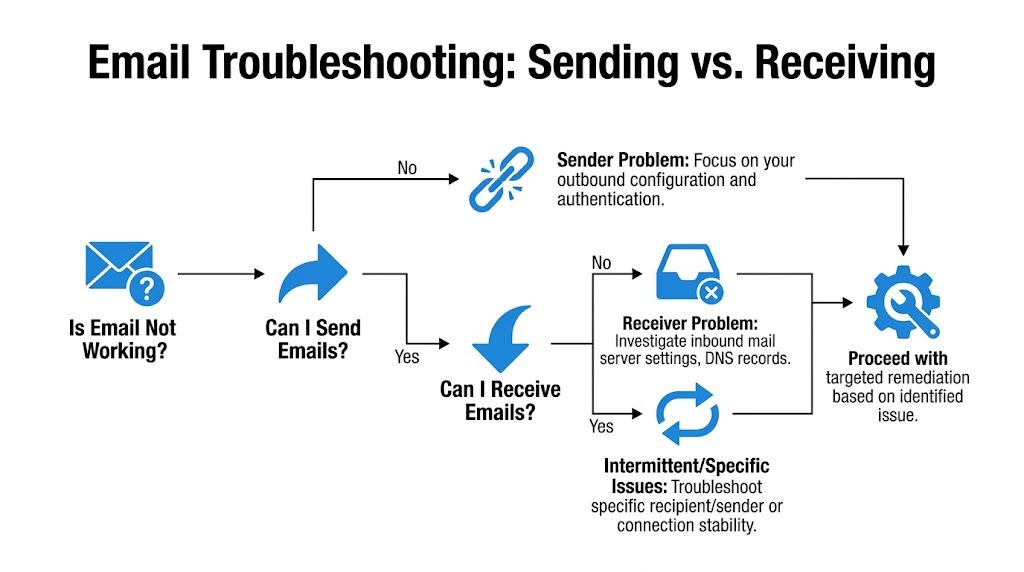
Don’t start with DNS edits. Don’t start by rotating keys. First decide whether the fault is outbound, inbound, or specific to one recipient path.
Start with a two-account test
Use two external mailboxes you control, ideally one Gmail and one Outlook account. Send the same test message from your system to both. Then send one plain text version and one HTML version. Keep the subject unique so you can trace it cleanly.
Use this quick branching logic:
-
Neither mailbox gets the message
- Focus on sender-side configuration, provider logs, and SMTP/API failures.
-
One mailbox gets it and the other doesn’t
- Focus on reputation, authentication alignment, and recipient-specific filtering.
-
Both get it in spam
- Focus on sender identity and content quality.
-
Both get it in inbox
- The issue is probably intermittent, recipient-specific, or client-side.
A fast external signal helps. Send a test to Mail-Tester or a similar deliverability checker and inspect the result before making changes. You’re looking for direction, not perfection. If it flags authentication or content issues, stay on the sender side. If the message scores reasonably but one real mailbox still doesn’t show it, inspect the recipient path.
Read the headers before touching DNS
Headers tell you whether the receiver trusted your message. In Gmail, open the message and view the original. In Outlook, inspect the message source or internet headers. Look for these authentication results:
- SPF pass or fail
- DKIM pass or fail
- DMARC pass or fail
- spam or quarantine annotations from the receiving system
If the receiver shows authentication failures, the problem is almost never “random.” It’s usually a mismatch between your sending domain, your provider configuration, and your DNS records.
Use terminal checks before changing anything:
dig txt yourdomain.com +short
dig txt _dmarc.yourdomain.com +short
dig txt selector._domainkey.yourdomain.com +short
Check MX and basic reachability too:
dig mx yourdomain.com +short
nslookup -type=mx yourdomain.com
If you’re testing a direct SMTP path from a host:
nc -vz smtp.provider.com 587
openssl s_client -starttls smtp -connect smtp.provider.com:587
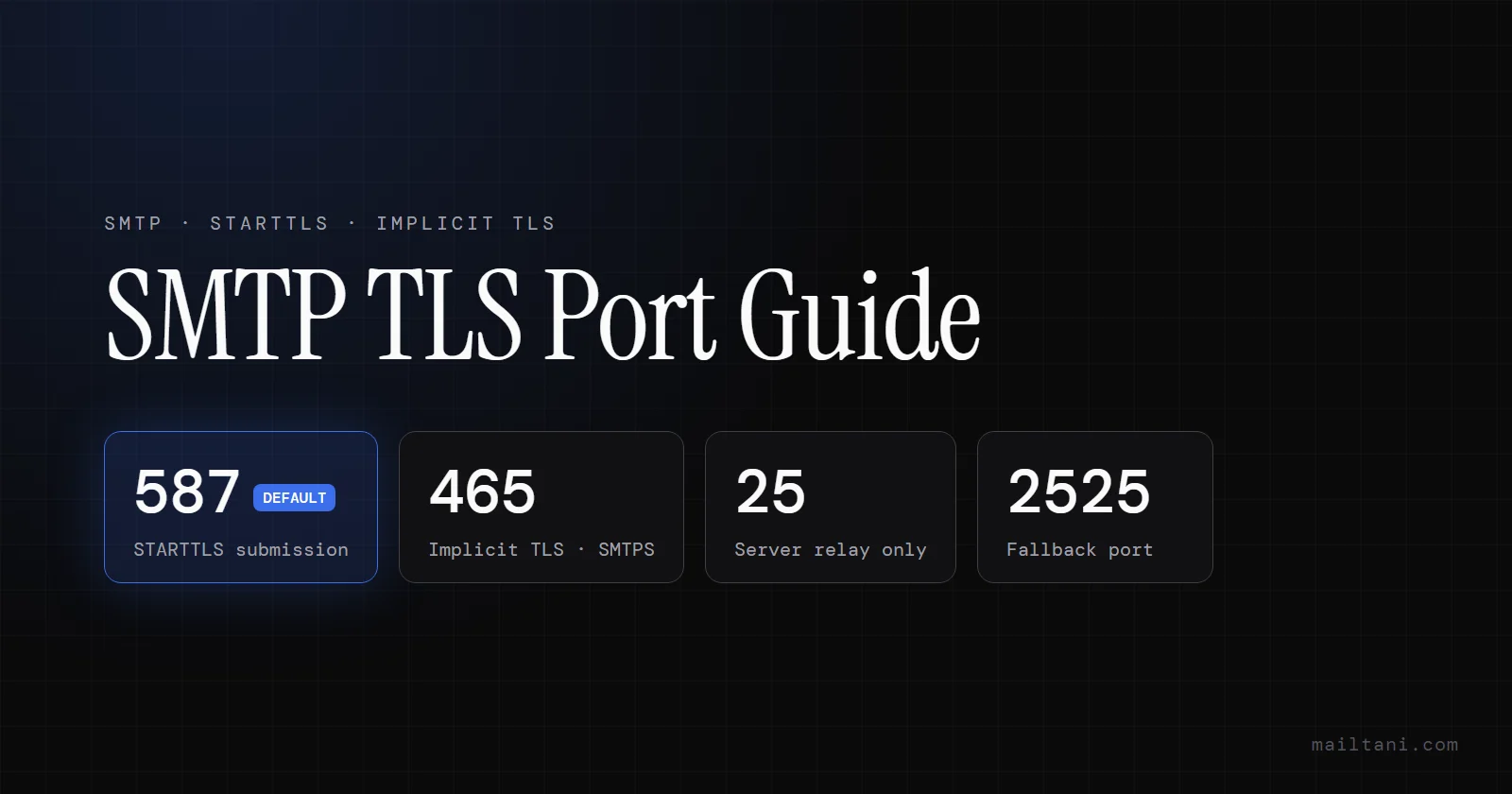
If the connection fails here, check that the port and TLS mode match: 587 expects STARTTLS, 465 expects implicit TLS. The SMTP port guide (587 vs 465 vs 25) explains how to read each failure.
Read the message headers and the provider event logs side by side. One tells you what your system attempted. The other tells you how the receiver judged it.
A lot of wasted time comes from skipping this branch point. If email not working means “I can send from webmail but not from Outlook,” don’t debug domain reputation. If it means “SES says delivered but Gmail put it in spam,” don’t reset the user’s password and try again.
Fixing Sender-Side Failures and Building Reputation
If outbound mail is failing and the provider is accepting your API call or SMTP session, focus on sender identity and reputation next. This is the layer where a message can leave your system cleanly but still get filtered, deferred, or rejected by the receiving side.
Authentication is how receivers decide whether to trust your domain
SPF defines which servers are allowed to send for the domain. DKIM signs the message so the receiver can verify it was authorized and not altered in transit. DMARC tells the receiver how to handle mail when SPF or DKIM checks fail alignment with the visible From domain.
A single missing record does not always cause a hard failure. It does make delivery inconsistent across providers, which is worse in production because the symptoms vary by recipient. One mailbox accepts the message. Another sends it to spam. A third rejects it after a policy update.
For Amazon SES and similar platforms, verify these items in order:
- Domain identity verified
- DKIM enabled and published
- SPF published where the provider checks it (for SES, on your custom MAIL FROM subdomain)
- DMARC policy published for the domain shown in From
Example DNS patterns look like this conceptually:
SPF     v=spf1 include:provider.example -all
DMARC   v=DMARC1; p=quarantine;
DKIM    selector._domainkey TXT "public-key-material"
Use the exact values from your mail provider. Hand-edited records are a common source of alignment failures, especially after a provider migration or a rushed DNS cutover. For SPF, an SPF record generator that knows each provider's include, and whether it belongs on a subdomain, avoids the most common mistakes.
Use verification commands from a shell:
dig txt yourdomain.com +short
dig txt _dmarc.yourdomain.com +short
dig txt selector._domainkey.yourdomain.com +short
If your application sends from a subdomain, verify the subdomain itself. A common failure pattern is From: [email protected] while SPF, DKIM, or DMARC was only set up for example.com.
Commands that verify the sender side
I check the sender path from the host that sends the mail, not from my laptop. That avoids false confidence from a clean local network path while the production host is blocked by firewall policy, missing environment variables, or stale DNS.
Confirm the API path from the application host:
curl -s https://api.provider.example/health
env | grep -iE 'SES|SMTP|MAIL|API'
Confirm the app can resolve and reach the provider:
nslookup smtp.provider.com
nc -vz smtp.provider.com 587
Confirm TLS negotiation works:
openssl s_client -starttls smtp -connect smtp.provider.com:587If you send through a local MTA relay, inspect queue state:
postqueue -p
grep -i 'status=' /var/log/maillog
grep -i 'status=' /var/log/mail.log
Those checks narrow the problem quickly. If DNS is correct but the relay queue is growing, inspect the MTA and its upstream responses. If the app cannot reach the provider endpoint, fix network or secret management first. If the message signs correctly but still lands in spam, move to reputation.
Later, if you want a visual walkthrough of how authentication and secure sending fit together, this video is useful context:
Shared IPs change the risk model
Shared sending pools are convenient, but they reduce your control. If another sender in the pool generates complaints, hits spam traps, or sends low-quality traffic, your mail can inherit the consequences even when your own configuration is correct.
That trade-off matters most for transactional systems, password resets, billing alerts, and product notifications. Those messages need predictable delivery more than they need the lowest possible setup effort. In practice, teams that care about inbox placement monitor complaint rates, warm up volume carefully, and move to dedicated infrastructure once shared reputation becomes unstable.
A clean sender setup usually includes more than passing SPF, DKIM, and DMARC. Keep bounce rates low. Remove unengaged or invalid recipients. Separate transactional and marketing traffic by domain or subdomain when volume justifies it. Publish a DMARC policy, then review aggregate reports so policy failures show up before users report missing mail.
If your mail path depends on a shared IP pool, a correct DNS setup may still be competing with someone else’s poor sending behavior.
For growing systems, reputation work is operational work. The sender domain, the IP pool, the list hygiene, and the application sending pattern all affect delivery. Basic user advice stops at "check your spam folder." Provider docs usually stop at "verify your domain." The actual fix often sits between those layers.
Troubleshooting Your Email Platform and API
If DNS checks out and the sender identity is valid, move to the service layer. For SES and similar platforms, the question becomes simple: did the provider reject, defer, bounce, or accept and hand off?
Where to look in the platform first
In Amazon SES, inspect these in order:
- Sending events for accepted, rejected, bounced, and complaint signals
- Identity status for the domain and any sending address
- Suppression lists for addresses that won’t be retried
- Quota and rate controls if sends suddenly stop
- SNS or webhook destinations carrying bounce and complaint payloads
A lot of “email not working” reports turn out to be application issues. The app catches a provider exception, logs only “send failed,” and drops the bounce code. Fix that first. Your app should log provider response code, recipient, message ID, and the exact API error body.
Here’s a minimal example of the kind of data worth preserving in application logs:
{
  "provider": "ses",
  "message_id": "provider-message-id",
  "recipient": "[email protected]",
  "status": "bounce",
  "smtp_code": "550"
}
Store the provider message ID with your application event. Without it, support teams can’t correlate what the app attempted with what the mail platform returned.
Common SMTP Bounce Codes and Their Meanings
| Code | Meaning | Action Required |
|---|---|---|
| 421 | Temporary service issue or rate-related deferral | Retry later, inspect provider health and rate limits |
| 450 | Mailbox unavailable temporarily | Retry, then inspect recipient-side conditions |
| 451 | Local processing issue or temporary block | Retry and review content, authentication, and reputation |
| 550 | Relay denied, mailbox unavailable, or policy rejection | Check sender auth, recipient validity, and relay permissions |
| 552 | Message too large or mailbox storage issue | Reduce message size and attachment weight |
| 553 | Invalid sender or recipient syntax/policy failure | Validate addresses and sending identity |
| 554 | Transaction failed, often reputation or policy related | Review authentication, content, and sender reputation |
For direct SMTP senders, error text matters as much as the code. A 550 relay not permitted points you toward authentication or relay policy. A timeout points you toward network path, firewall, or TLS negotiation. A message accepted and then bounced later points you toward recipient policy or address validity.
Don’t flatten all of these into “delivery failed.” The whole point of platform debugging is to preserve the distinction.
Solving Client-Side and SMTP Connection Errors
A common outage pattern looks like this. SES or your mail provider shows accepted sends, webmail works, and DNS checks passed earlier, but one laptop still cannot send and another never shows new replies. At that point, stop treating it as a generic email problem. Treat it as a client path problem and isolate whether the failure is SMTP submission, IMAP sync, local policy, or the network between the user and the provider.
This layer sits between basic user advice and provider-side diagnostics. The server may be healthy while the endpoint is wrong in one small but important way, such as the wrong port, stale credentials, a broken TLS trust store, or a local rule moving mail out of view.
SMTP submission failures from desktop and mobile clients
Start with the symptom the user can reproduce on demand. “Email not working” is too broad. “Webmail sends, Outlook times out on 587 from the office network” is specific enough to test.
Use this order:
-
Confirm the exact failure
- Can the user receive but not send?
- Is mail stuck in Outbox?
- Does the client show
relay not permitted, authentication failed, certificate warnings, or a timeout?
-
Verify SMTP settings against the provider
- Outgoing hostname matches the provider or relay service
- Port is 587 for STARTTLS or 465 for implicit TLS
- Encryption setting matches the selected port
- SMTP authentication is enabled
- Username matches the authenticated mailbox or SMTP credential set
-
Test the path outside the client
- Try the same account in webmail
- Try the same client on a different network
- Disable VPN or endpoint filtering briefly if policy allows
-
Reduce message variables
- Send plain text
- Remove attachments
- Send to one mailbox you control
Useful commands from a host with shell access:
nc -vz smtp.provider.com 587
openssl s_client -starttls smtp -connect smtp.provider.com:587
telnet smtp.provider.com 587
Interpret the result before changing settings blindly. If nc cannot connect, suspect a firewall, ISP block, VPN policy, or the wrong hostname. If openssl s_client connects but the certificate chain is invalid, the client OS may have an outdated trust store or TLS stack. If the TCP and TLS layers work but the client still fails authentication, reset the stored password, check for app-specific passwords, and confirm the provider still allows SMTP auth for that account.
I see one mistake often in Microsoft 365 and Google Workspace environments. The mailbox password is correct for web login, but SMTP auth is disabled for the account or blocked by conditional access policy. From the user’s point of view, mail is broken. From the server’s point of view, the login is being refused exactly as configured.
Client-side receive failures
Receive problems usually show up as partial visibility. Webmail has the message, the phone does not. One teammate sees replies in a shared mailbox, another does not. That points to sync, local rules, cached state, or mailbox mode, not sender DNS or provider acceptance.
Check these in order:
-
Look in spam, junk, archive, and focused or other inbox views
- Client-side sorting hides messages more often than users expect.
-
Inspect mailbox rules and local filters
- Forwarding rules, auto-archive, categories, and client-only filters can move mail before anyone notices.
-
Confirm the account uses IMAP or the correct Exchange sync method
- POP causes inconsistent state across devices and is a poor fit for shared visibility.
-
Check mailbox quota and local cache health
- A full mailbox or corrupted local profile can stop sync without a clear error.
-
Compare with webmail
- If webmail shows the message, the provider accepted and stored it. The issue is in the client path.
Basic connectivity test:
openssl s_client -connect imap.provider.com:993A clean IMAP TLS connection tells you the network path and certificate negotiation are probably fine. It does not prove the mailbox is syncing correctly. For that, compare folder counts, recent message timestamps, and account settings on the affected device.
If webmail has the message and the desktop client does not, rebuild the local profile before touching DNS, MX, or provider settings. That saves time and avoids breaking a healthy mail flow while trying to fix a workstation problem.
What each error pattern usually means
Some failures are configuration errors. Others are environment errors.
-
Timeout on SMTP 587
- Network path problem, firewall egress rule, VPN inspection, ISP filtering, or wrong hostname
-
Certificate warning or TLS negotiation failure
- Outdated client, broken trust store, intercepted TLS, or unsupported protocol version
-
Relay not permitted- Wrong SMTP server, missing authentication, or account lacks permission to submit through that relay
-
Auth succeeds in webmail but fails in the client
- Stale saved password, MFA or app-password issue, SMTP auth disabled, or policy restriction
-
Webmail receives mail but one device does not
- Local rules, POP misconfiguration, cached profile corruption, or sync scope limits
For API-driven platforms such as Amazon SES, this distinction matters. SES can accept your application send request while the human-facing mailbox client still fails to submit user-generated mail through SMTP, or fails to display inbound replies because IMAP sync is broken on one endpoint. Those are separate systems with separate logs. Keep them separate during triage.
The fastest fix is usually the one that removes one whole layer from suspicion. Webmail works. SMTP test from terminal works. IMAP over 993 negotiates cleanly. Once those are true, stop changing server-side mail settings and repair the client.
Your Actionable Remediation Checklist
When production email breaks, speed matters more than elegance. The safest response is a short sequence that starts with external proof, then narrows to one failing layer.

Fast checks first
- Send a control message to two external mailboxes you own. Compare inbox, spam, and absence.
- Inspect provider event logs for acceptance, rejection, bounce, or suppression.
- Read raw headers on any message that arrived. Check SPF, DKIM, and DMARC outcomes.
- Test SMTP reachability from the sending host.
nc -vz smtp.provider.com 587
openssl s_client -starttls smtp -connect smtp.provider.com:587- Verify DNS records from a terminal instead of trusting screenshots.
dig txt yourdomain.com +short
dig txt _dmarc.yourdomain.com +short
dig mx yourdomain.com +short
Deep checks when the fast ones pass
-
Compare From domain and authenticated domain
- Alignment failures are common in multi-domain setups.
-
Review shared IP exposure
- If only some recipient domains fail, reputation may be the limiting factor.
-
Check local mail client settings
- For send problems, validate 587 or 465, encryption mode, and SMTP auth.
-
Audit inbound handling
- The verified data notes that a structured audit of spam filters, blocklists, and forwarding rules is critical because aggressive filters can misroute up to 35% of legitimate emails, and verifying IMAP on port 993 with SSL boosts reply tracking by 90% in unified inboxes, per DuoCircle’s troubleshooting guidance.
-
Preserve evidence
- Keep provider message IDs, SMTP codes, and raw bounce text in logs.
Here’s the condensed incident flow I’d keep in a runbook:
- Reproduce with a fresh test.
- Decide sender-side vs receiver-side.
- Validate authentication and connection.
- Read provider events and bounce codes.
- Inspect recipient headers and spam placement.
- Repair the failing layer only.
- Retest with the same controlled inputs.
Email gets easier when you stop treating it like a black box. It’s a chain of systems. Each one leaves clues. If you follow those clues in order, you can usually get from “email not working” to a specific fix without guessing.
If you want more control over deliverability, pricing, and reply handling, Mailtani takes a practical approach: you bring your own provider like Amazon SES, Resend, or Mailtrap, keep ownership of your sender reputation, and avoid the usual markup and lock-in that come with all-in-one ESPs.