Guides
Contacts, Lists, Tags and Segments
Your contacts are the people you email. Lists, tags and segments group them so you can pick who gets a campaign, and custom fields store what you know about each one (a plan, a company, a signup date) for your emails to use.
On the Free plan you can have up to 500 contacts. A plan removes the limit.
Add Contacts
Where to find it
Contacts › Import CSV
Import a CSV from Contacts › Import CSV, add people one by one, or sync them from your app with the API. The import wizard is walked through in Getting Started; on its Map Columns step you can also add everyone to lists and tags.
Lists
Where to find it
Lists › Create List
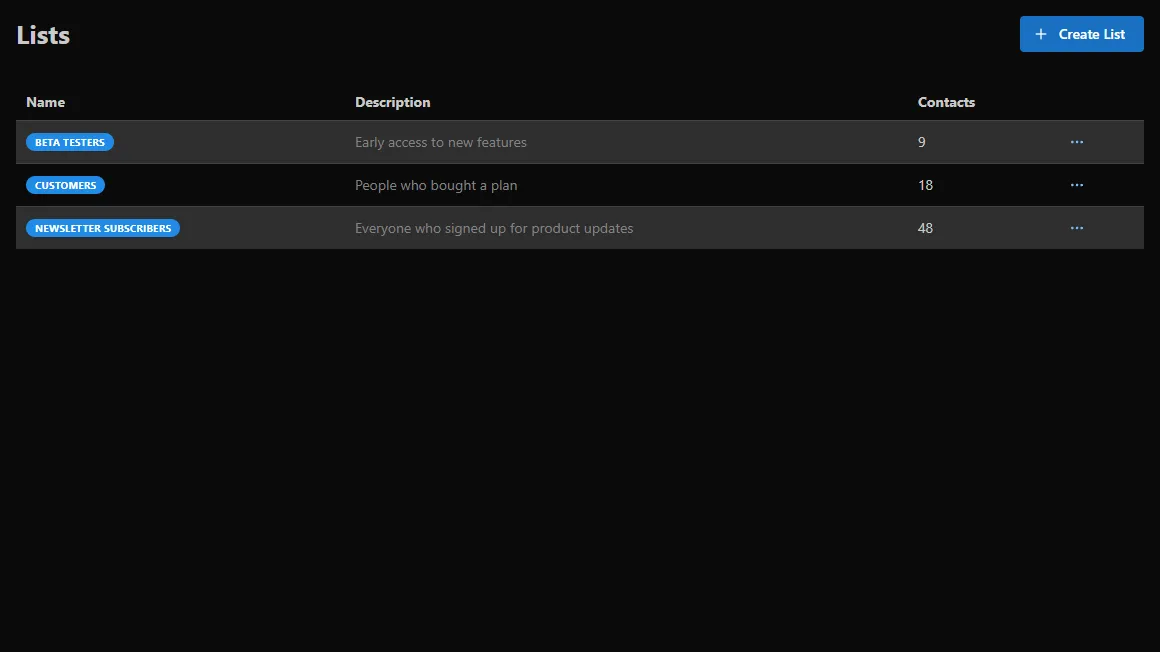
A list is a group you put people into yourself, like "Newsletter subscribers" or "Customers". Click Create List, give it a Name (and, if you like, a Description and Color), then add contacts by importing them into the list, from a contact's page, or with a signup form that feeds it.
Lists work as campaign recipients, and a flow can start when someone joins a list.
Tags
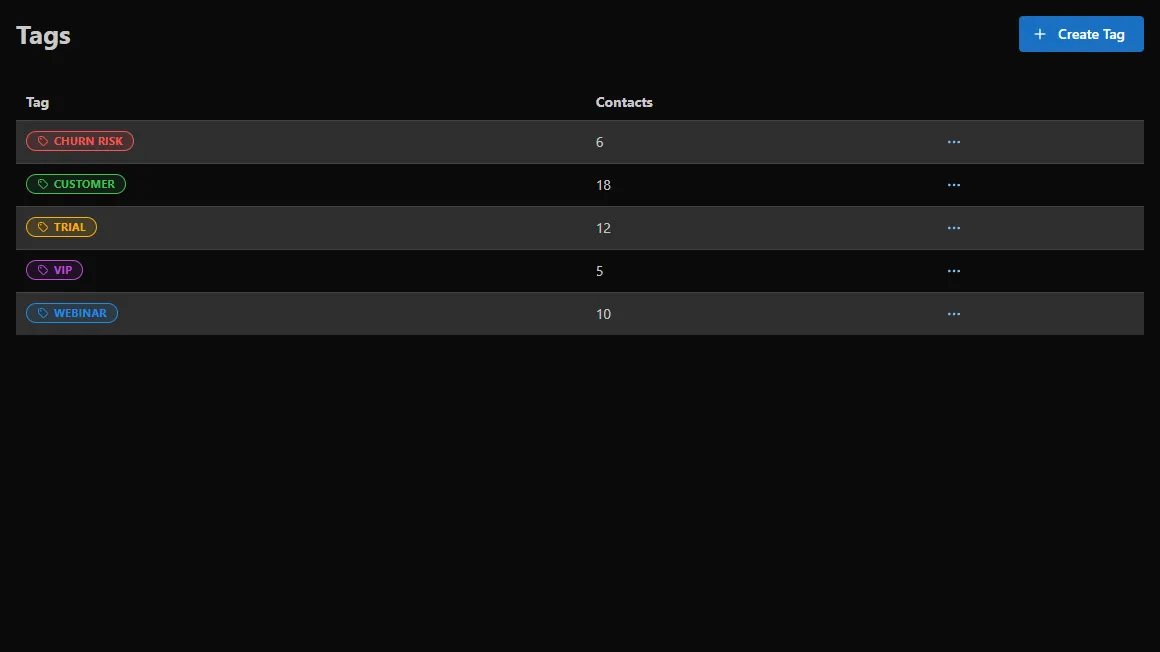
Where to find it: Tags in the sidebar › Create Tag.
Tags are labels you add to contacts, like customer, trial or vip. A contact can have many tags. Use them to pick
recipients and in segment rules.
Segments
Where to find it
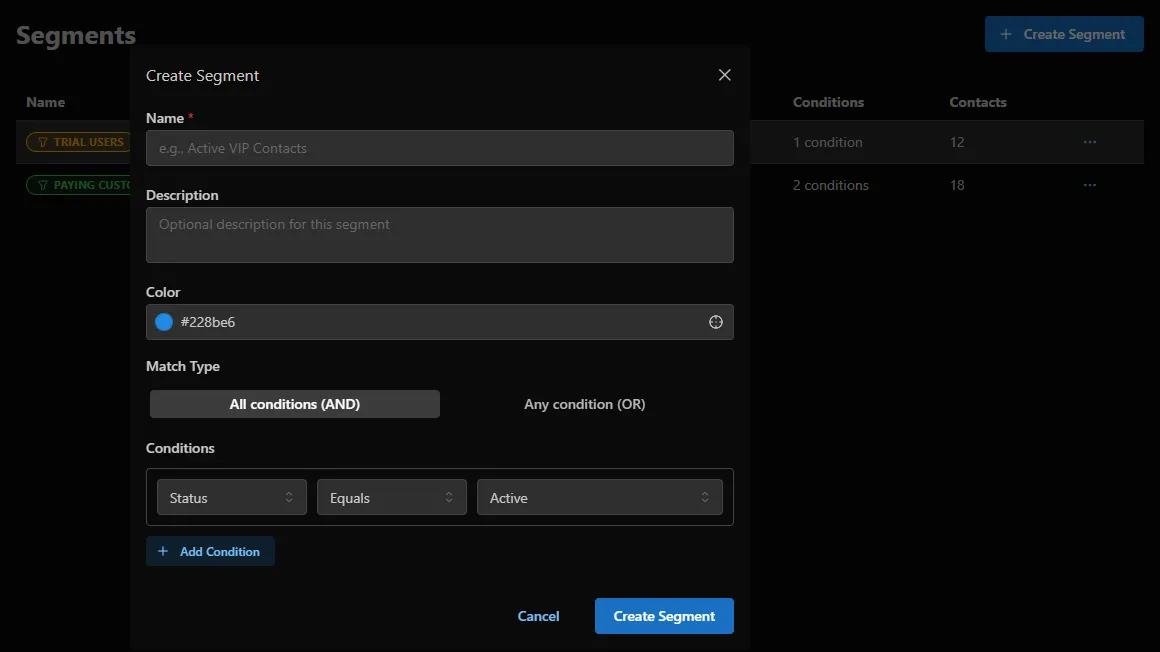
Segments › Create Segment
A segment is a saved rule, and mailtani keeps it up to date: anyone who matches is in it, anyone who stops matching leaves. Click Create Segment, give it a Name, choose All conditions (AND) or Any condition (OR), and add Conditions (a field, how to compare it, and a value), with Add Condition for more. Click Create Segment to save it.
Use segments as campaign recipients. A sequence can enroll people automatically as soon as they match its segment (see Sequences).
Custom Fields
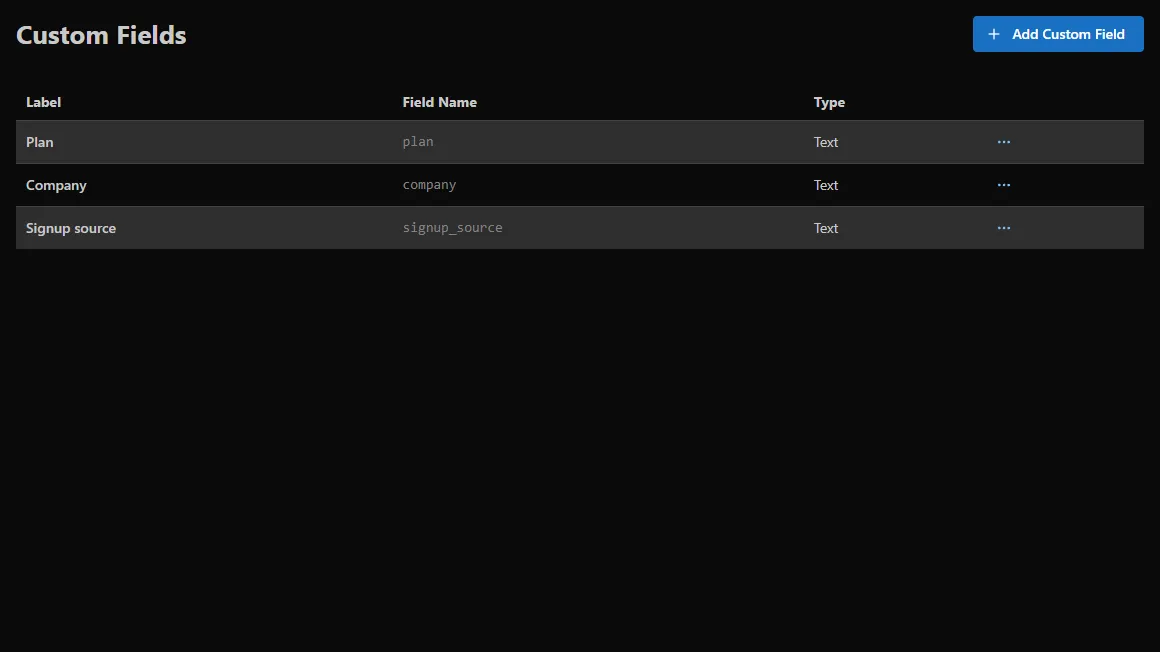
Where to find it: Custom Fields in the sidebar › Add Custom Field.
A custom field stores one piece of data on every contact. Set its Field Name (what you write in emails, like
companyName), a Label people see, and a Type. Fill it in by import, on a contact's page, or from your app
with the API, and use it in emails as {{custom.companyName}} (see
Variables & Personalization).