
How to Send Video Mail Without It Landing in Spam
Learn the four methods to send video mail, from HTML5 embeds to GIF previews. This guide covers deliverability, client compatibility, and how to track results.

On this page
Most advice about send video mail starts in the wrong place. It treats the problem like file transfer. Attach the video, paste a YouTube link, or drop in a Drive URL and move on.
That works for one-off personal messages. It breaks down fast in marketing email.
The inbox is hostile to heavy media, inconsistent HTML, and anything that looks even slightly suspicious. If you're sending campaigns, onboarding flows, product launches, or DTC promos, the core task isn't “send a video.” It's protecting deliverability, keeping the experience clean, and tracking what people did after the click.
Why 'Just Link It' Is Bad Advice for Video Mail
“Just paste the YouTube link” is popular because it's easy for the sender, not because it's good for the campaign.
A raw link strips out context. The subscriber has to trust the URL, leave the inbox, wait for a page to load, and then decide whether the video is worth their time. That's friction on top of friction. It also weakens the brand experience because the inbox message and the watch experience feel disconnected.
The bigger problem is performance. Video in email consistently outperforms plain static approaches when used properly. According to Beehiiv's video email marketing statistics roundup, embedding videos directly into emails increases open rates by 19%, boosts click-through rates by 65%, reduces unsubscribes by 26-75%, and adding the word video to the subject line can lift opens by 6-7%. A naked link leaves most of that upside on the table.
Practical rule: If the email doesn't visually signal that a video exists, many subscribers won't treat it like video content at all.
There's also a filtering issue. Raw links can look spammy when the rest of the email is thin, especially if you stack multiple tracking elements or pair them with sloppy copy. Before sending anything with “watch,” “video,” or promotional language in the subject line, it's worth checking the wording with a spam word checker so you don't create preventable friction.
What the shortcut costs you
- Brand control slips away when the click sends people into YouTube suggestions, third-party chrome, or generic cloud pages.
- Intent gets harder to read because a simple click doesn't tell you whether someone watched, bounced, or got distracted.
- Follow-up logic gets weaker since you can't cleanly separate curious clickers from real viewers.
Send video mail like a marketer, not like you're emailing a file to a coworker. The method matters.
Choosing Your Method A Comparison of Four Approaches
There isn't one universal way to send video mail. There are four. Each one solves a different problem, and each one creates a different kind of risk.
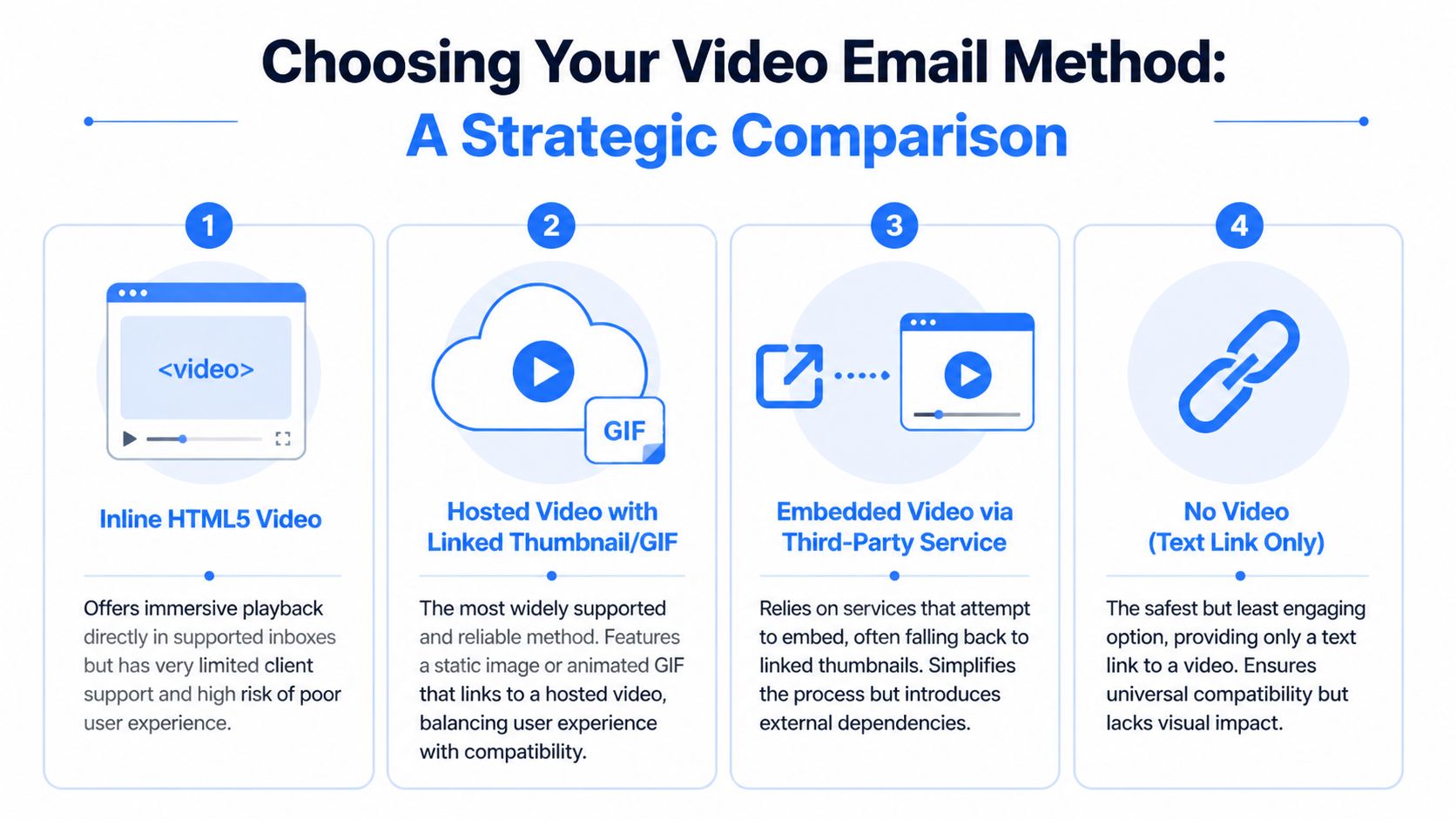
The four options in plain English
1. Inline HTML5 video
This is the ambitious route. You place a video element inside the email and let supported clients play it in the inbox. When it works, it's slick. When it doesn't, the fallback decides whether the campaign still feels professional.
Use it when you know your audience skews toward clients that handle it gracefully and you're prepared to build proper fallbacks.
2. Hosted video with linked thumbnail or GIF
This is the workhorse method. You host the video elsewhere, then use a thumbnail or GIF in the email that links to a landing page or hosted player. It's widely compatible and easier to QA across Gmail, Outlook, Apple Mail, Yahoo, and mobile apps.
This is usually the best answer for send video mail at scale.
3. Embedded video via third-party service
Some tools package the setup for you. In practice, many of them still rely on a thumbnail fallback behind the scenes, even if the feature is marketed as “video in email.” That's not necessarily bad, but it means you're accepting another vendor's rendering logic, analytics model, and failure modes.
Good for teams that want less implementation work. Less good if you care about deep control.
4. Direct attachment
Attachments belong in person-to-person communication, not campaign email. Large files slow everything down, make the message heavier, and create unnecessary delivery risk. For marketing sends, it's the weakest option.
If you're sending to a list, attachment-first thinking is usually a sign that the email was planned like a file share, not a campaign.
Quick comparison table
| Method | Best for | Main advantage | Main drawback |
|---|---|---|---|
| Inline HTML5 video | Controlled tests and niche client mixes | In-inbox playback | Limited support and fallback complexity |
| Hosted video with linked thumbnail or GIF | Most campaigns | Strong compatibility and cleaner tracking | Requires landing page or hosted destination |
| Embedded third-party service | Teams that want convenience | Faster setup | External dependency and less control |
| Direct attachment | Rare one-to-one sends | Simple for the sender | Poor fit for scale and deliverability |
The method changes results. According to Zebracat's 2025 video email statistics, emails featuring product demo videos see a 35% lift in engagement. The preview style matters too. Animated GIF previews yield a 22% lift, while autoplay previews drive 12.1% open rates compared to 9.6% for static thumbnails. That tells you two things. First, motion can help. Second, “video in email” isn't one tactic. It's several different experiences.
If you're weighing platforms as much as methods, a side-by-side look at email tools is useful before you commit to a sending stack. This email platform comparisons page is a good place to sanity-check the trade-offs.
Preparing Your Video for Email Delivery
The email usually gets blamed when a video send performs badly. Often the problem starts with the asset.
A bad thumbnail, a bloated GIF, muddy audio, or a weak opening frame will hurt clicks before client compatibility even enters the conversation.
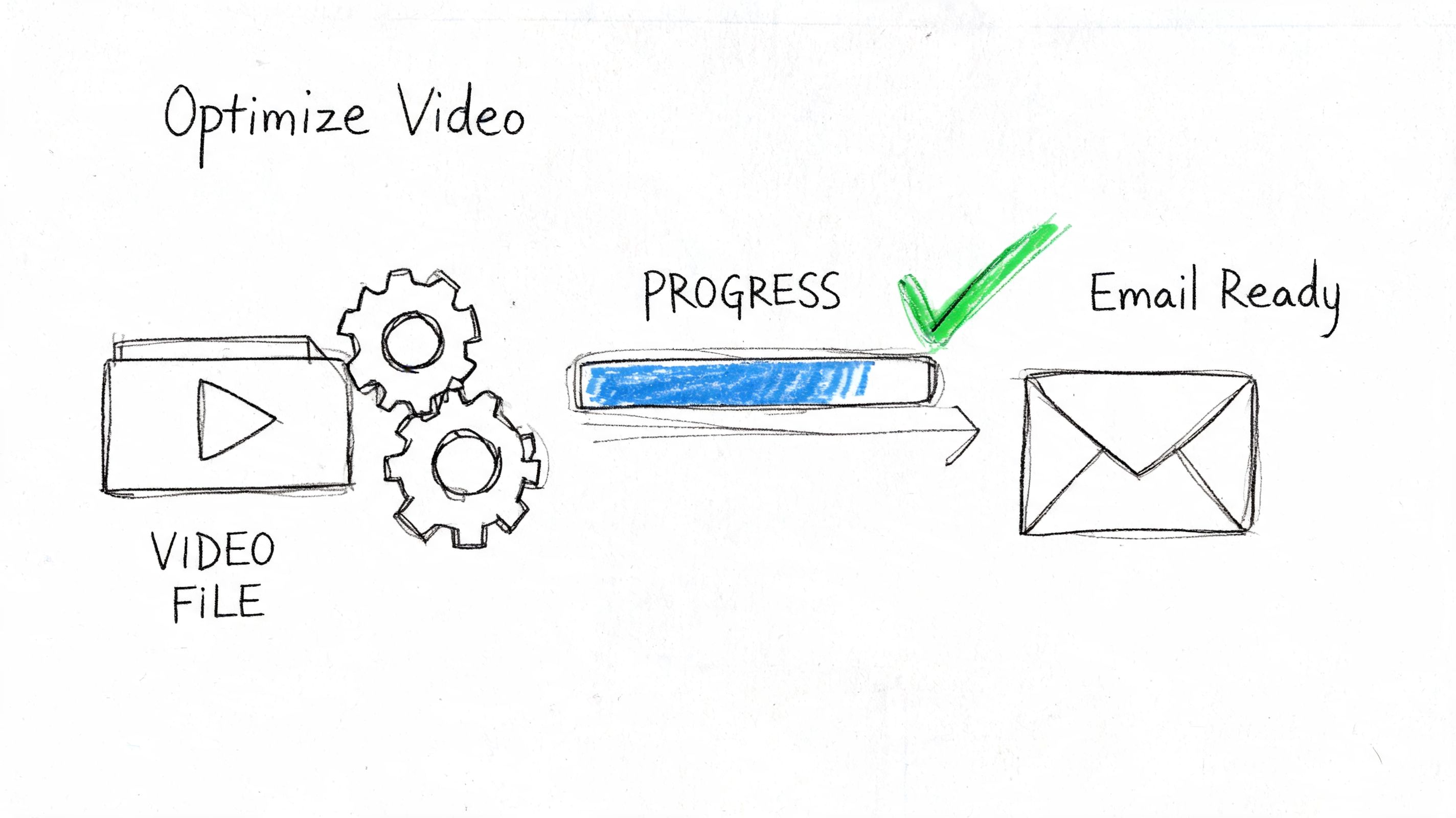
Get the asset ready before you touch the email
Start with the video file itself.
- Use MP4 for your master file because it's the most practical format for hosted delivery and broad playback.
- Keep the opening seconds clear. The first frame often becomes the thumbnail reference, and a weak opening frame kills curiosity.
- Design for silent understanding because many subscribers decide whether to click before audio ever matters.
- Write a transcript or captions early so the landing page and the email surrounding it can carry the message even when the video isn't watched.
If you need help turning spoken content into reusable copy, subtitles, and supporting text, Whisper AI's video transcription guide is useful. It helps with a part teams often skip until the end, then rush.
Host for control, not convenience
The safest pattern is simple. Host the MP4 externally. Put a thumbnail in the email. Link the image to a landing page or hosted player.
That isn't just a workaround. It's often the best professional choice. According to Atlassian's Loom article on video email, hosting MP4 videos externally and using thumbnails that link to landing pages boosts views by 41% compared to attempts at direct embedding, and only about 10% of email service providers support inline playback.
The inbox isn't a video player. Treat it like a launch surface.
For preparation, keep this checklist tight:
- Choose one destination URL for the click. Don't send some users to YouTube and others to a file host.
- Create a dedicated thumbnail with a visible play button and enough contrast to read on mobile.
- Build a landing page that matches the email promise. Same headline, same offer, same CTA.
- Preview the email before sending. Rendering issues often show up in image scaling, dark mode, and mobile stacking long before launch.
A proper rendering pass saves headaches. Run the creative through an email preview tool so you can catch layout problems before subscribers do.
The Code and Compatibility Puzzle
Email HTML is still full of compromise. Send video mail with raw web assumptions and you'll get broken layouts, missing controls, or a blank box where the player should be.
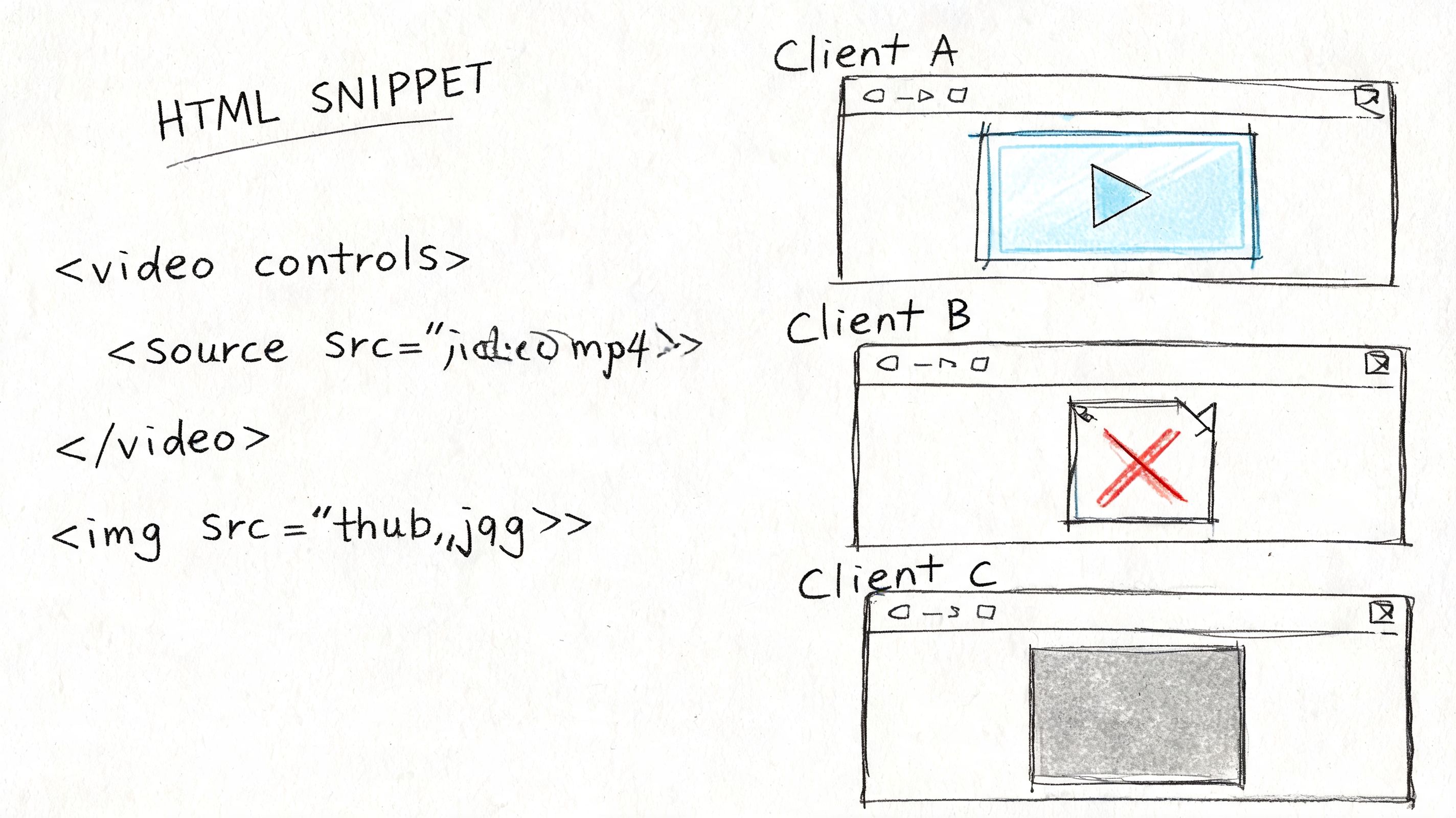
The right way to approach this is progressive enhancement. Let capable clients show richer media. Give everyone else a polished fallback.
A safe HTML5 pattern with fallback
Here's a practical pattern:
<table role="presentation" width="100%" cellspacing="0" cellpadding="0" border="0">
  <tr>
    <td align="center">
      <video controls poster="https://example.com/poster.jpg" width="600" style="width:100%; max-width:600px; height:auto; display:block;">
        <source src="https://example.com/video.mp4" type="video/mp4">
        <a href="https://example.com/watch-video">
          <img src="https://example.com/poster-with-play-button.jpg" alt="Watch the video" width="600" style="width:100%; max-width:600px; height:auto; display:block; border:0;">
        </a>
      </video>
    </td>
  </tr>
</table>
This matters more than it looks. The poster frame gives supported clients a clean preview. The fallback image inside the video element gives unsupported clients a useful click target instead of a dead block. The destination page stays under your control.
A lot of teams learn the support lesson by breaking a live campaign first. Don't.
What usually breaks
The biggest technical mistake isn't failed playback. It's file weight. According to Beanstalk Consulting's send-video-through-email playbook, 28% of emails with media attachments or embedded elements over 5MB land in promotions or spam tabs, compared to 12% for text-focused emails. Shared IP environments make that risk worse because you're inheriting other senders' reputation problems too.
That data should change how you build:
- Don't attach large video files to campaigns.
- Don't rely on oversized GIFs just because every client can display them.
- Don't stack heavy media elements in one message unless the email has a strong reason to exist.
Later in the build, a walkthrough can help if you're implementing the pattern by hand:
Supported playback is a bonus. Fallback quality is the real standard.
If you don't want to fight client quirks, linked thumbnails and GIF previews are easier to maintain. The code is simpler, the QA burden is lower, and the subscriber experience is more predictable.
Tracking Engagement and Proving ROI
A video click isn't the goal. It's the start of the measurement chain.
Most advice about how to send video mail falls apart at a critical point. It explains the mechanics of getting a video into an email, but fails to show how to prove whether the video influenced buying intent, lead quality, or next-step behavior.
Why generic links create a reporting gap
A Google Drive link or file-share URL gives you convenience and very little intelligence. According to Box's discussion of sending video through email, generic cloud-sharing links result in anonymous views and provide less than 5% open-to-view conversion insights. Pixel-tracked video platforms can yield 22% conversion insights, and A/B testing a static versus GIF thumbnail can boost clicks by 17%.
That's the operational difference between “people clicked something” and “this segment watched enough to justify a follow-up.”
If your reporting stops at click-through, you won't know:
- whether viewers watched
- which creative drove qualified interest
- which contacts deserve a sales or retention sequence
- whether the thumbnail did the work or the landing page did
What to track instead
A useful video mail setup connects the email click to downstream behavior.
Track these layers:
| Layer | What it tells you |
|---|---|
| Email click | The subscriber noticed the video offer |
| Landing page arrival | The click resolved cleanly and loaded |
| Video start | The visitor had enough intent to begin watching |
| CTA click after viewing | The video moved someone toward action |
That framework works especially well when you segment by click source, creative version, and destination page. A subscriber who clicked a product demo thumbnail should not get the same follow-up as someone who ignored it but purchased anyway.
A clean implementation also protects attribution. Use descriptive URL parameters, keep the destination page specific to the campaign, and feed the engagement event back into your segmentation layer. Once you do that, video stops being decorative content and becomes a measurable conversion asset.
A Practical Mailtani Workflow for Video Mail
The cleanest production workflow for send video mail isn't flashy. That's why it works.
Start with one hosted video, one purpose-built thumbnail, one landing page, and one segment you can act on after the send. Keep the moving parts tight.
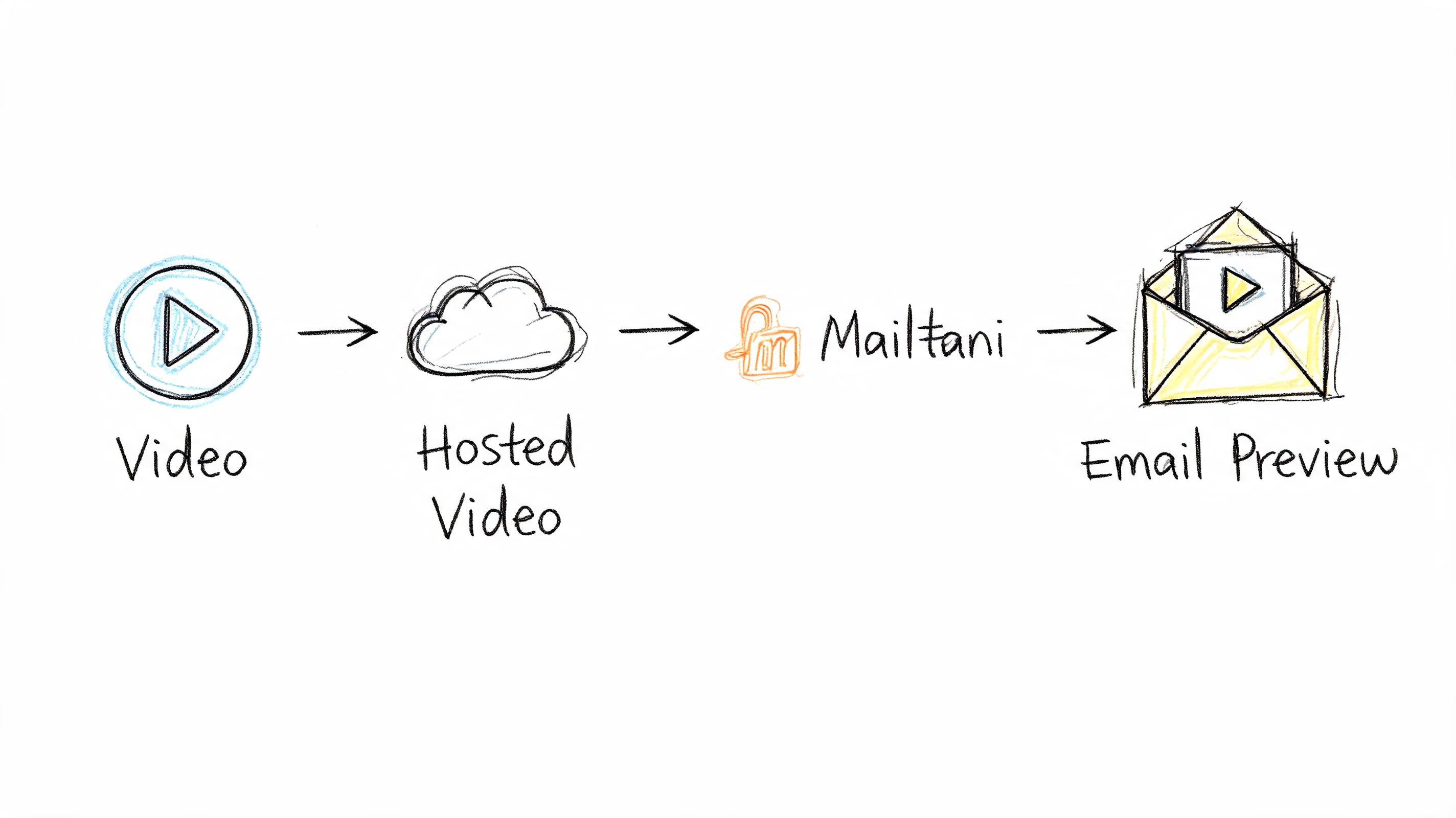
The workflow
A practical setup looks like this:
- Host the video on infrastructure you control. That can be your own page, a branded video page, or a hosted asset behind your preferred stack.
- Build a thumbnail for the email. Use a strong frame, obvious play icon, and alt text that explains the value of clicking.
- Create the campaign in Mailtani. Insert the image block, link it to the hosted video page, and keep the surrounding copy short.
- Tag clickers immediately. Anyone who clicks the video should enter a segment that distinguishes interest level from the rest of the list.
- Send the follow-up based on behavior. A click can trigger a product education sequence, a sales handoff, or a reminder with a different angle.
That workflow is especially effective for DTC launches and product education campaigns. You keep brand control, you don't force attachments into the inbox, and you can use downstream actions rather than guessing intent.
What this setup gives you
The big advantage is control.
- Sending control because you're not depending on a shared-logic “video email” feature that may render differently than expected.
- Data control because clicks and responses stay tied to your campaigns and segments.
- Cost control because the infrastructure layer is separated from the campaign layer.
If your content team starts with recorded material and needs to turn it into email creative fast, this guide on how to generate email campaigns from video is a useful companion resource. It fits well when webinar clips, product demos, and founder videos need to become repeatable campaigns.
A setup like this also keeps your operations cleaner. Replies can map back to the original send, engaged subscribers can move into targeted automations, and you avoid the usual mess of cloud links, inconsistent analytics, and bloated sends.
Frequently Asked Questions About Sending Video Mail
How large should a GIF preview be
Keep it as light as possible. Once media elements get heavy, deliverability risk rises and load times worsen. For campaign email, small and fast beats cinematic every time. If the GIF needs too many frames to explain the value, use a static thumbnail instead.
Is a YouTube link good enough
Sometimes, but only for low-stakes sends. It can work for simple announcements or one-to-one outreach. It isn't ideal when brand consistency, analytics, and post-click experience matter. A linked thumbnail to a controlled page is usually the more professional option.
How do you make video email accessible
Use descriptive alt text on the thumbnail image, make the CTA explicit, and support the video with surrounding copy so the email still makes sense without playback. Captions and transcripts on the destination page help people who can't or don't want to use audio. Good accessibility also improves clarity for everyone else.
If you want to send video mail without renting overpriced infrastructure, Mailtani gives you the practical setup most platforms hide. You connect your own provider, keep control of deliverability, track engagement properly, and avoid per-subscriber pricing that gets absurd as your list grows.


