
How To Embed A Video In An Email The Right Way
Learn how to embed a video in an email the right way in 2026. Discover methods that work, protect deliverability, & why clickable thumbnails are best.

On this page
Most advice on how to embed a video in an email starts with the wrong goal. It treats native video playback inside the inbox as the win.
It isn't.
The victory is getting the subscriber to notice the video, understand that it's clickable, and move to a controlled viewing environment without breaking the email in Gmail, Outlook, or older desktop clients. If you care about reach, rendering consistency, sender reputation, and infrastructure cost, "embed video" usually means "simulate video well enough to earn the click."
That's the version that works in production.
The Hard Truth About Video in Email
Video absolutely helps email performance. According to Validity's guidance on video in email marketing, emails with video content can lift open rates by 19 percent and click-through rates by 65 percent. That upside is real, and it's why marketers keep searching for how to embed a video in an email.
The problem is the inbox doesn't cooperate.
Most major email clients still don't support native HTML5 video playback at scale, which means the classic <video> approach fails for a large share of the audience in real campaigns. If your list includes Gmail and Outlook users, and almost every commercial list does, "true embed" is not a reliable distribution method. It's a partial enhancement at best.
That changes the job.
You're no longer trying to squeeze a media player into the inbox. You're trying to create the strongest possible visual cue that says "there's a video here, click it," while keeping the message lightweight and stable across clients. That mindset produces better campaigns because it aligns with how inboxes render HTML.
Practical rule: Treat video in email as a click-generation problem, not a playback problem.
This is also why engagement metrics need context. A subject line can improve curiosity. Preview text can improve open behavior. If you want a useful baseline for that side of the equation, Mailtani's guide to email open rate benchmarks and context is worth reading before you judge video creative on clicks alone.
The hard truth is simple. Native embedded video is a niche enhancement. Faux embedding is the production-safe method.
That isn't a compromise. It's the strategy that lets you keep the promise of video without sacrificing compatibility.
Four Methods for Using Video in Email
There are four common ways marketers try to put video into email. Only one works cleanly for almost every list.
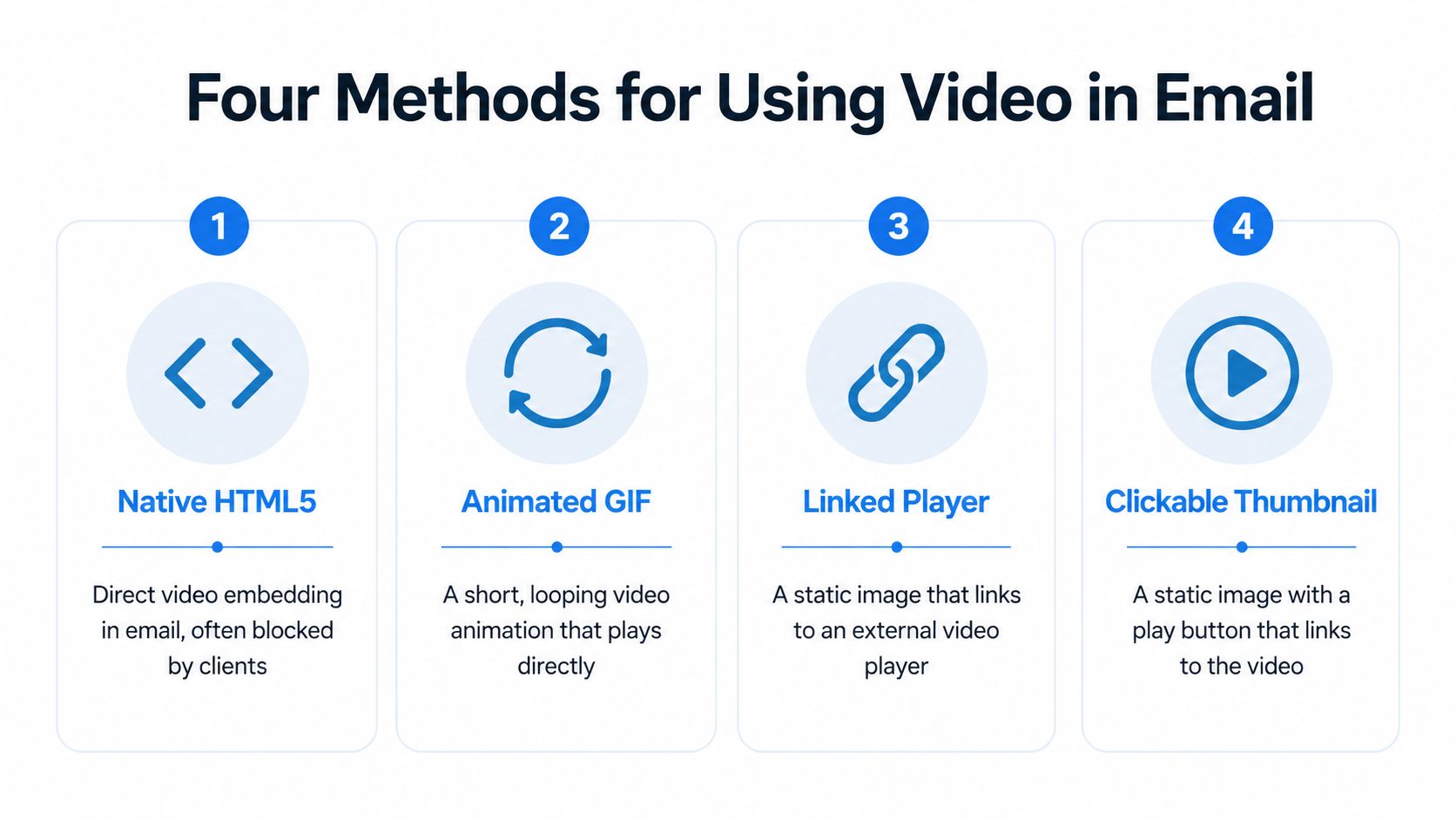
Native HTML5
This is the purest version of "embed a video in an email." You place a <video> tag in the HTML and hope the client renders it.
The upside is obvious. In supporting clients, the email can feel polished and modern. The downside is worse. Support is fragmented, fallbacks are mandatory, and the creative can fail in the exact environments many commercial campaigns depend on. Use this only when your audience mix is unusually favorable and your fallback is already strong.
Animated GIF
A GIF gives the illusion of motion inside the inbox without relying on native video playback. It grabs attention fast and can preview the strongest moment of the clip.
It works well when the file is short, visually clear, and optimized aggressively. It works badly when teams export a heavy asset, let the first frame look random, or assume every client will animate it. Motion helps, but GIF is still a preview layer, not the actual viewing experience.
Linked player
This method usually means an image or player-like block that routes the subscriber to a hosted page where the video lives. It can be functional, but it often looks ambiguous if the design doesn't clearly signal interactivity.
That's the weakness. If the block looks like a banner instead of a video entry point, people won't click.
Clickable thumbnail
This is the best default for many marketers. You use a static thumbnail or optimized GIF, add a clear play button, and link the entire element to a landing page or hosted player.
It wins because it is reliable, easy to understand, simple to build, and easier to test than native embed. It also keeps your email lean. If you're planning broader promotion around the same asset, this guide on how to amplify your reach with Revid.ai is a useful complement because distribution strategy matters just as much as inbox rendering.
The safest email video setup is often the one that looks interactive rather than the one that tries to be interactive.
Here's the practical comparison:
| Method | Reliability | Reach | Complexity | Deliverability risk |
|---|---|---|---|---|
| Native HTML5 | Low to mixed | Limited by client support | High | Higher |
| Animated GIF | Good with caveats | Broad, but not universal | Moderate | Moderate if oversized |
| Linked player | Good | Broad | Low | Low |
| Clickable thumbnail | Best overall | Broadest practical reach | Low | Lowest |
If you're deciding what to ship, don't optimize for novelty. Optimize for the experience most subscribers will get.
The Clickable Thumbnail Method Step by Step
The clickable thumbnail approach is the ideal method to use when determining how to embed a video in an email. It respects client limitations, keeps the email lightweight, and sends traffic to a page where you control playback, analytics, and follow-up actions.
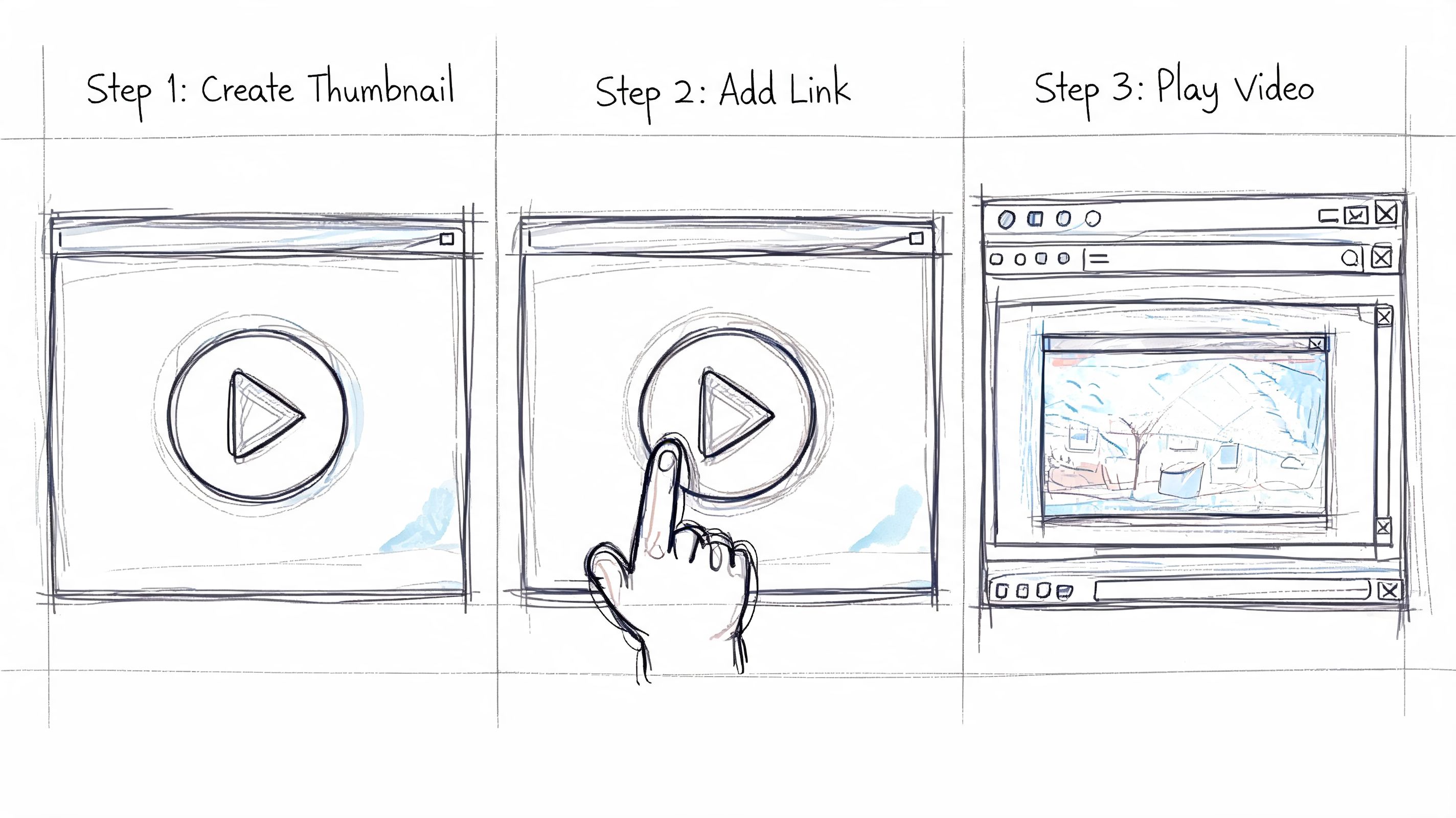
According to Litmus on video in email, the best-practice workflow is to host the video, create a short looping GIF that's typically 2 to 5 seconds, upload that GIF into the email, and link it to the video's landing page. The same guidance notes that keeping the GIF-and-link pattern is especially useful for senders using cost-efficient infrastructure because it avoids large embedded attachments that can hurt deliverability.
Host the video where you control the destination
Start with the destination, not the inbox asset.
You can host on YouTube, Wistia, Vimeo, or your own infrastructure. The choice depends on what happens after the click. If you want minimal friction and familiar playback, a public platform can work. If you want tighter branding, stronger attribution, or a cleaner path to product signup or purchase, a dedicated landing page is usually better.
A good destination page should do three things:
- Load fast: The email earned the click. Don't waste it with a slow player page.
- Match the promise: Use the same frame, headline, or offer the subscriber saw in the inbox.
- Give a next step: Add a CTA under or beside the video so the visit can convert.
Build the visual asset for the inbox
You have two strong options. A static thumbnail with a play button, or a short GIF that previews motion.
Use the static option when the message is straightforward and you want the lightest possible asset. Use the GIF when motion adds clarity or emotion. If you go with GIF, keep it short and selective. Litmus recommends short loops, and it also notes that oversized GIFs can hurt loading performance. The practical checkpoint is to keep GIFs under 1 MB, sized around 300 to 600 px wide at 72 dpi, while preserving enough clarity to show movement and branding.
The frame you choose matters more than you might think. Pick a moment with a face, product action, or strong visual contrast. Then overlay a play icon that leaves no doubt the element is clickable. If you need help with the creative side, this walkthrough on crafting engaging AI thumbnails has useful ideas for making thumbnails more legible and click-worthy.
A thumbnail should answer one question in less than a second: "Why should I click this?"
Code the email so the click is obvious
The image or GIF should be wrapped in a clear link to the video page. Don't make only the tiny play icon clickable if you can avoid it. Make the whole module clickable.
Then add a text CTA below it. Some subscribers won't trust an image alone. A button like "Watch the demo" or "See how it works" gives them a second route.
A practical build pattern looks like this:
- Upload the asset to your ESP or image CDN.
- Wrap the image in an anchor that points to the landing page or hosted video.
- Add supporting copy that explains what they'll see after the click.
- Include a button CTA below the image for subscribers who skim.
If you're assembling this in a drag-and-drop workflow or need to refine the markup, an HTML email builder for faster layout work can save time, especially when you're testing multiple thumbnail and CTA variations.
A quick visual reference helps if you're handing this off to a marketer or designer:
Test the path not just the asset
A lot of teams preview the email, see the thumbnail, and stop there. That's not enough.
Click through the full journey on desktop and mobile. Check whether the landing page keeps the same visual context. Confirm the hosted player loads correctly, the CTA below the video works, and the analytics setup matches your privacy requirements. If the video is meant to sell, book, or onboard, the page after the click is part of the email experience.
The inbox asset gets attention. The destination page closes the loop.
Navigating Email Client Support and Fallbacks
Email video support is fragmented enough that professionals build for failure first. The question isn't whether one client somewhere can render a richer experience. The question is whether the message still works when that richer experience disappears.
Campaign Monitor's guide to video in email client support and fallback behavior makes the critical point: Outlook 2007, 2010, 2013, and Windows 10 Mail don't support animated GIFs properly and show only the first frame. The same guide also notes that client fragmentation makes layered fallbacks necessary, not optional.
What breaks across clients
This is the production reality in a simplified support matrix.
| Email Client | HTML5 <video> | Animated GIF |
|---|---|---|
| Apple Mail | Supported in some environments | Supported |
| Gmail | Generally not supported at scale | Supported |
| Outlook on Windows newer versions | Supported in a subset of environments | Mixed |
| Outlook 2007 to 2013 | Not supported | First frame only |
| Windows 10 Mail | Not supported | First frame only |
| Outlook.com | Mixed, fallback handling needed | Supported with caveats |
| Mobile clients | Mixed by app and OS | Often supported |
That table is exactly why a "works on my test email" mindset causes trouble. One inbox shows a clean animation. Another shows a frozen first frame. Another strips the intended player entirely.
If the first frame has to carry the whole message in Outlook, design it that way from the start.
What a professional fallback stack looks like
A solid setup uses graceful degradation.
For clients that support richer media, you can allow it. For everyone else, the subscriber should still see a convincing visual block with a play cue and a working link. Older Outlook versions need special attention because the first frame becomes the experience. That means the first frame must already include the play icon and enough context to earn the click.
A practical fallback stack usually includes:
- Primary asset: A static thumbnail or short GIF with a visible play icon.
- First-frame planning: For Outlook variants that freeze GIFs, the first frame must function as a standalone thumbnail.
- Fallback display CSS: Outlook.com may need client-specific handling so fallback content is visible.
- Full client testing: Send test renders before launch, not after complaints arrive.
If you're still experimenting with native video, keep the fallback content production-ready. In email, fallback isn't secondary content. It's the version many subscribers will receive.
The Deliverability and Cost Implications
Most articles about video in email stop at rendering. That's only half the job. The hidden issue is what bad rendering does to campaign performance and sender health.
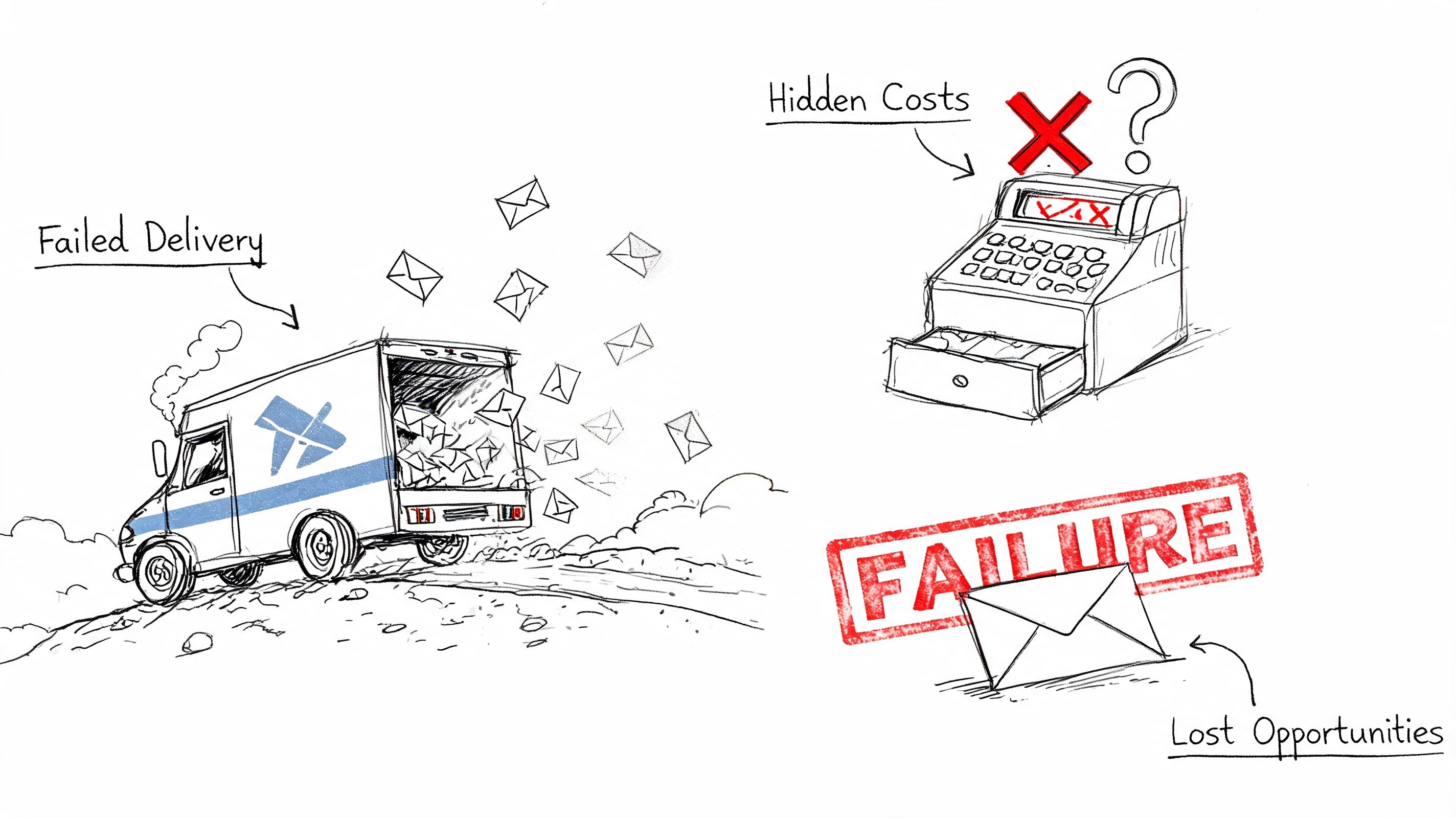
Mindstamp's discussion of embedding video in email and what can go wrong highlights a blind spot that many guides skip: broken rendering can tank engagement, push messages toward the spam folder, and damage sender IP reputation. For teams sending through infrastructure they manage themselves, that isn't an abstract technical issue. It's a business risk.
Broken rendering hurts more than design quality
When subscribers open an email and see a blank box, a nonfunctional media area, or a confusing visual element, they don't file a technical report. They ignore the message, delete it, or stop trusting your campaigns.
Mailbox providers read those engagement patterns. They don't care that your intent was creative. They care how recipients behave. If a failed embed lowers clicks and weakens user interaction, your next campaigns may pay the price even if the content is fine.
That's why lightweight, dependable media treatment is part of deliverability work. It's not just front-end polish. If you're actively improving inbox placement, these email deliverability best practices for senders who own their stack are the right companion reading.
Field note: The best video email is often the one that behaves like a normal email until the subscriber chooses to watch.
Lightweight email assets are cheaper to send and easier to trust
There is also an infrastructure angle.
Heavy assets increase complexity, increase testing burden, and create more ways for the message to fail across clients. A linked thumbnail or optimized GIF keeps the email lean and pushes the actual media load to the web page, where browsers and players are built for it.
That matters for cost-conscious teams. If you're sending at volume through Amazon SES, Resend, or similar providers, every wasted send has a real cost. So does every damaged reputation signal that forces slower ramping, more testing, or recovery work later.
Use the inbox to persuade the click. Use the landing page to deliver the video. That's the cheaper system and the safer one.
Advanced Considerations Accessibility and Privacy
Two issues get ignored in most conversations about how to embed a video in an email. One affects usability. The other affects compliance.
Accessibility starts with the thumbnail
A video thumbnail is still an image inside the inbox. That means alt text matters.
If a screen reader user encounters your video block, "image.jpg" or "play button" isn't enough. Describe the content and the action. "Watch our product demo video" is far better because it tells the subscriber what the element is for. If the destination video includes spoken information, captions matter on the landing page too. These Cloud Present webinar accessibility tips are a useful refresher for teams that want the video experience to stay accessible after the click.
Keep the text CTA under the thumbnail even if the design looks cleaner without it. Accessibility often improves when intent is repeated in plain language.
Privacy obligations don't stop at the click
GlockApps points out a major blind spot in video links, analytics, and compliance risks in email: when a subscriber clicks a video thumbnail and lands on a page with analytics, consent requirements still apply. The article specifically notes that GDPR requires explicit consent before firing tracking pixels in that external environment.
That has practical consequences.
If your video page loads third-party analytics, embeds a platform with its own trackers, or hands off data to another service, review the consent flow before launch. The email itself may be compliant while the click destination is not. Self-hosting may reduce exposure in some setups, but it doesn't remove your obligation to understand what fires on page load and what requires consent first.
Accessibility and privacy aren't edge concerns. They're part of shipping video responsibly.
If you want the control to build campaigns like this without paying markup on sending infrastructure, Mailtani is worth a look. You bring your own provider such as Amazon SES, Resend, or Mailtrap, keep your deliverability under your control, and send through a full email platform without getting trapped in per-subscriber pricing.
